Overview
This guide covers commonly reported issues when executing Katalon scripts on TestGrid devices and provides recommended solutions to help restore normal execution and device availability.
Issue 1: Device Remains in "Connect (Local Execution)" State After Stopping a Katalon Script
Symptoms
After manually aborting or stopping a test execution in Katalon Studio:
The device remains in the Connect (Local Execution) state.
The device is not immediately released back to the device pool.
Other users cannot reserve or use the device.
Cause
When a script is manually aborted in Katalon Studio, the execution terminates before the driver.quit() method is executed.
Since TestGrid does not receive a proper session termination request, it waits for the session timeout period before automatically releasing the device.
Resolution
Option 1: Wait for Automatic Release
TestGrid automatically releases the session after the configured timeout period, which is typically around 7–8 minutes.
The timeout duration can be customized if required.
Option 2: Manually Release the Device
Open the device information panel.
Click the Info button.
Click Release Device.
Option 3: Release Device Using API
Use the Device Release API within your automation framework.
This can be added to:
- After Execution methods
- Tear Down methods
- Cleanup routines
This ensures devices are released even when executions are interrupted.
Issue 2: Katalon Execution Fails with "Application Does Not Exist or Is Not Accessible"
Symptoms
After re-running a test execution, Katalon fails with an error similar to:
"The application at '/Users/testgrid/*' does not exist or is not accessible"
Cause
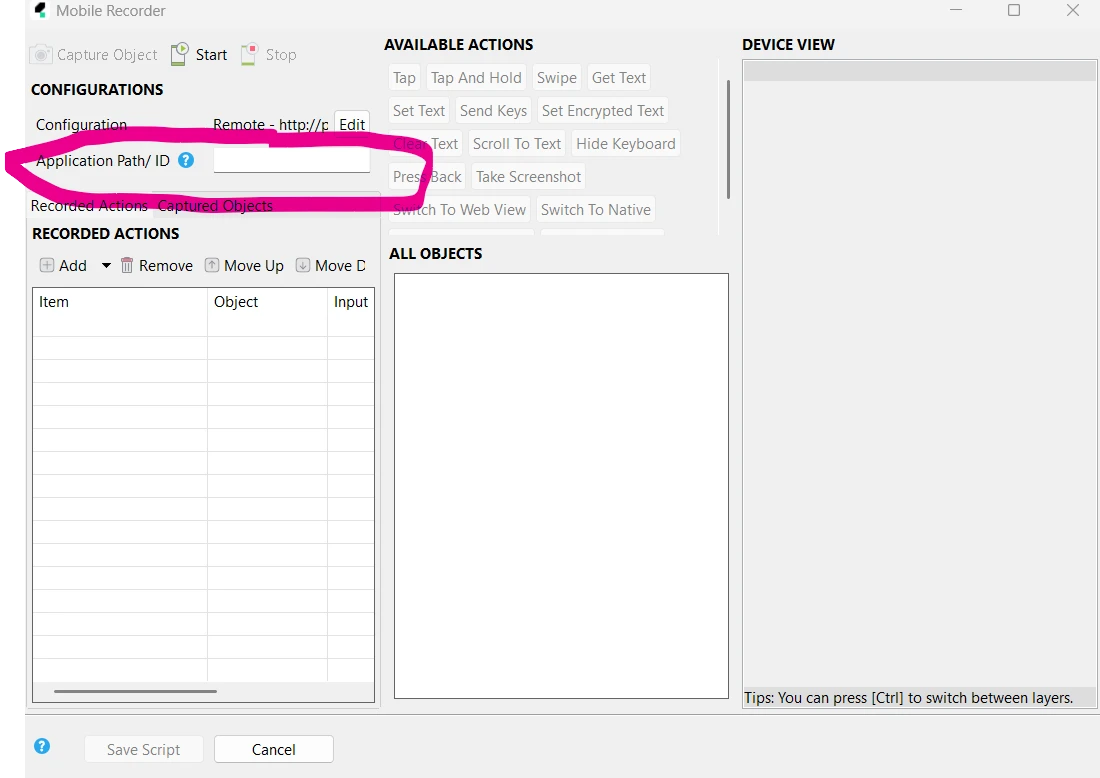
The application path configured in Katalon Studio contains an asterisk (*) character.
Example:
/Users/testgrid/*
The wildcard character is not supported in the application path and prevents Katalon from locating the application.
Resolution
Remove the Wildcard Character
Remove the asterisk (*) from the configured application path.
Save and Re-Execute
Save the configuration and execute the test again.
The application should now be detected successfully.
Outcome
Following the steps in this guide helps ensure devices are released correctly after interrupted Katalon executions and prevents application path configuration issues that can cause execution failures.
Was this article helpful?
That’s Great!
Thank you for your feedback
Sorry! We couldn't be helpful
Thank you for your feedback
Feedback sent
We appreciate your effort and will try to fix the article